Trade Sounds Widget
Overview
The Trade Sounds widget translates trade data into distinct audio cues, allowing you to monitor market activity without being glued to your screen. It sonifies the size and aggression of trades at the bid and ask, providing an intuitive audio feed of the order flow. This helps you develop a feel for the market's rhythm, detect shifts in momentum, and identify key trading activity in real-time, a concept often referred to as Market Sonification.
Key Features:
- Distinct Ask/Bid Sounds: Separate audio cues for trades occurring at the ask (buys) and the bid (sells) for instant recognition of market aggression.
- Volume-Pitched Audio: The Pitch of the sound corresponds to the Price of the trade. The volume of the sound corresponds to the size of the trade , allowing you to hear the difference between small retail trades and large institutional orders in the context of price action.
- "Ping Pong" Mode: An innovative feature that uses stereo panning to create an audible sense of direction and rhythm in the order flow. This helps you perceive the back-and-forth battle between buyers and sellers as if it were a game of ping pong. (See it in action).
- Configurable Sound Patches: Start with sound themes shared by the community and fine tune the widget audio feedback to your preference to create your own unique audible edge.
- Size Alerts: Isolate and focus only on trades that matter by setting minimum and maximum size filters to cut through the noise. Up to five size alert thresholds can be set, with unique sound effects for the Bid / Ask trades above each threshold. (See it in action)
Quick Start
Prerequisites
- A modern web browser such as Google Chrome.
- Stereo headphones or speakers are highly recommended to take full advantage of directional audio features like "Ping Pong" mode.
- An active data symbol has been selected from the Symbol Selection popup e.g. ES, NQ (within Globex trading hours) or MSFT (within extended Stock trading hours)
Basic Setup
For a complete visual and audible walkthrough, watch the Quick Start Guide.
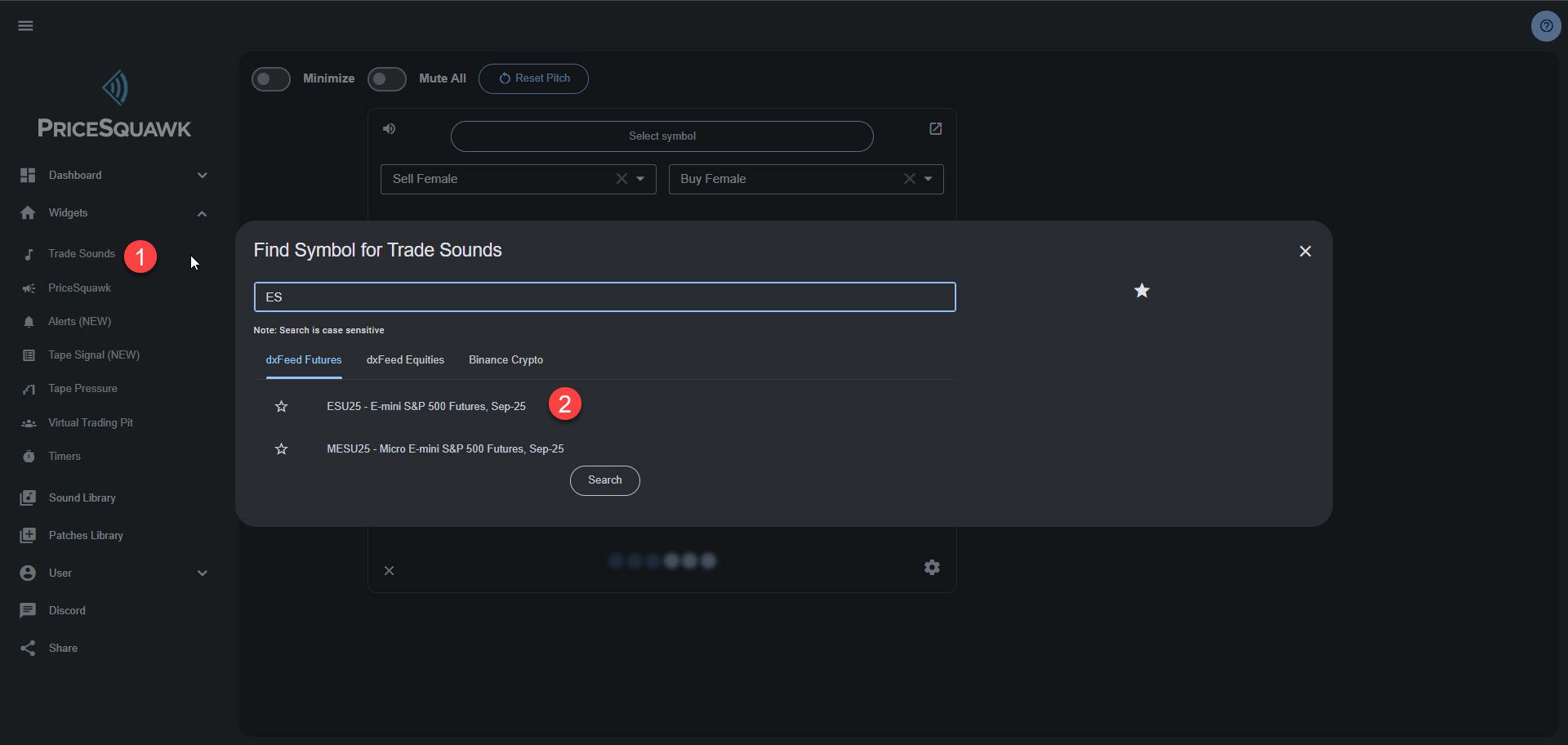
- Ensure you are on the Dashboard, then from the Widgets menu click "Trade Sounds" from the list of available widgets.
- Select a symbol you wish to monitor using the Symbol Lookup popup. You can browse or search for available symbols using the Search bar.
- The Widget will open and you should immediately begin to hear sounds as new trades occur. The widget will analyze recent trade history to set some basic useful settings to optimize the sound pitch, trade aggregation and alert settings.
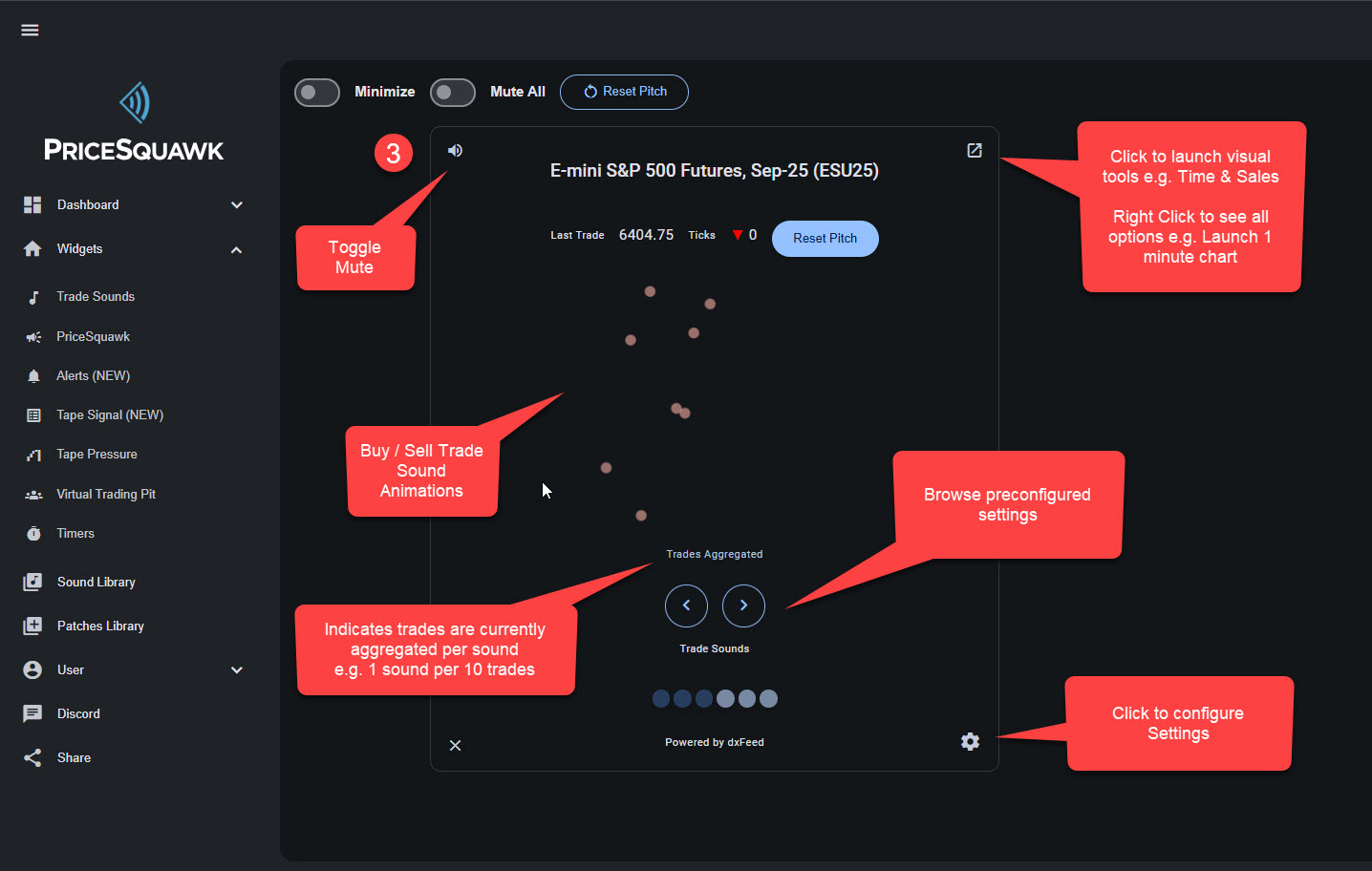
⚡ 30-Second Test: With the widget active and unmuted, you should hear a series of clicks, tones or speech. If the market is active, sounds from the left speaker indicate selling pressure (trades at the bid), and sounds from the right speaker indicate buying pressure (trades at the ask).
Sensitivity
The Trade Sounds Widget automatically changes the general loudness of trade sounds, based on the volume context. If volume has increased relative to recent action, then trade sounds will be louder, and if volume has dried up then sounds will return to softer levels. This can be used to monitor for volatility opportunities which usually occur with higher volume flows. Alternatively lower volume can indicate liquidity drying up or impending news or levels that have traders hesitant.
Louder sounds indicate that volume accumulated over a short time period (30s to 2m) is statistically significant compared to the context window (10 - 30 minutes). There is an algorithm that takes in other factors, however generally speaking the sensitivity can be changed as follows:
- High Sensitivity - 30 second snapshot of accumulated volume compared to a 10 minutes context window.
- Mid Sensitivity - 1 minute snapshot of accumulated volume compared to a 15 minute context window.
- Low Sensitivity - 2 minute volume snapshot of accumulated volume compared to a 20 minute context window.
- Off - Loudness of trade sounds is only determined by the Size thresholds.
Audio Output
Sound Characteristics
- Buy or Sell Sound Effect: Defaults to ‘Buy’ / ‘Sell’ indicating a trade event occurring at the Bid (‘Sell;) or Ask (‘Buy’). The individual Buy and Sell sounds can be used to monitor which side is more prominent e.g. More selling sounds indicate more selling aggression.
- Stereo: Typically trades at the Ask are panned to the right speaker and trades at the Bid are panned to the left speaker. This direction can also be used to monitor which side is more aggressive. The speaker direction can be reversed in the users preferences e.g. Buy in the left speaker, Sell in the right.
- Pitch: A higher pitch sounds indicates a higher trade price and vice verse for lower pitched sounds. Pitch can be used to monitor Price action and volatility. The relationship between Price and Pitch change can be changed via Ticks to Pitch setting.
- Volume: Louder sound indicates either a larger individual trade at the Bid / Ask, or depending on the Sensitivity setting, a trade event in the context of increased overall volume trading over time. Large trades are commonly monitored by order flow traders for identifying aggressors and increased volume flows are often associated with volatility opportunities. Up to 5 size thresholds can be set for Size, and the Sensitivity can be changed or disabled for hearing volume flow.
- Rhythm: The frequency and sequence of sounds indicate the pace and flow of the market. A rapid succession of sounds in one speaker suggests aggressive buying or selling. The Pace of Tape, heard through the rhythm of sounds is a key indicator for order flow traders, and rhythm provides rich pattern recognition opportunities. (See and hear market rhythm in action)
Listening Guidelines
- Use Headphones: To get the most out of the stereo separation, headphones are essential. This allows you to intuitively sense the direction of the selling or buying pressure, and tune in for audible pattern recognition.
- Set a Baseline: Listen during a typical, balanced market session to get a feel for the "normal" rhythm. This will make unusual activity—like a sudden surge in volume or one-sided pressure—stand out, as discussed in this use case analysis.
- Listen in the Background: The goal is not always to focus intensely on the sound, but often to let it become part of your ambient awareness of the market, similar to how @2yrflipper would listen to the ‘Roar of the Pit’. (Listen to @2yrflipper describe this). Through experience, your brain will learn to flag significant changes and identify audible patterns, which you can then use to direct your visual attention to the DOM or Chart when it's most needed.
Parameter Reference
Core Parameters
| Parameter | Type | Default | Range | Description |
|---|---|---|---|---|
| Patch | Dropdown | - | All available | Select from your saved settings for this Widget, or load settings shared by the PriceSquawk community. |
| Alerts Only | Toggle | Off | On/Off | Only Buy / Sell Size Alerts are played. No individual trade sounds that change with Pitch. |
| Buy Sound | Dropdown | ‘Buy’ | Various | Selects the base sound effect used for trades at the Ask that can change pitch with price. |
| Sell Sound | Dropdown | ‘Sell’ | Various | Selects the base sound effect used for trades at the Bid that can change pitch with price. |
| Volume | Slider | 100% | 0 - 100% | Controls the overall volume of the widget. |
| Trade Size Alerts | ||||
| Size | Number | 1 | 1 - Max Size | Threshold for alerts greater than or equal to this size. |
| Buy Sound | Dropdown | 0 | 1 - Max Size | Sound effect used for trade alerts at the Ask |
| Sell Sound | Dropdown | 0 | 1 - Max Size | Sound effect used for trade alerts at the Bid |
| Style | Dropdown | Play Sound | All available | Speak Value - Announces full trade size e.g. ‘199 hit Speak Threshold - Announces the threshold value e.g. ‘100 lift’ Play Sound - Play the selected buy or sell sound effect |
| Male Voice | Toggle | Female | Male / Female | Voice selection for spoken alerts |
‘Advanced Parameters
| Parameter | Type | Default | Range | Description |
|---|---|---|---|---|
| Aggregate Volume | Number | Calculated | 1 - Max | Aggregates trades to a single sound. e.g. 10 contracts per 1 sound. |
| Pitch Mode | ||||
| Price | Toggle | Enabled | Price / Fixed / Ping Pong | Trade Sounds above the minimum threshold will change in pitch, up or down based on the price action. |
| Fixed | Toggle | Disabled | Price / Fixed / Ping Pong | Pitch will remain fixed with one semitone between buy vs sell trades. |
| Ping Pong Mode | Toggle | Disabled | Price / Fixed / Ping Pong | When On, pans bid trades to the left and ask trades to the right. Fixed pitch. Alerts played as a melodic up or down. Learn More. |
| Other Options | ||||
| Ticks to Pitch | Number | Calculated | 1 - Max | Controls how much the pitch of the sound changes relative to price action e.g. The number of ticks price moves before pitch changes. |
| Pitch Range | Number | Calculated | 1 - Max | Sets the maximum range of the pitch before it recenters. Value is the number of semitones before recentering. Use the demo sounds to fine tine. |
| Recenter Alert | Toggle | Off | On / Off | Plays ‘Recenter’ to notify that pitch has recentered after reaching the maximum / minimum pitch range. Can be used for price range alerts. |
| Calculate | Button | On Startup | Analyzes historical tick data to derive useful settings for Ticks to Pitch and Aggregate Volume and Trade Alerts for clarity of sounds on startup. Will not automatically run if loading a saved dashboard widget or patch. If there is sufficient trade data, alerts are calculated statistically (e.g. Middle size = 90th percentile size). | |
| Sound Duration | Number | 50 | 10+ | Length of sound effect / tone played for trade sound in 100ths of a second. E.g. 10 = 1 second. |
| Enable Stereo | Toggle | On | On / Off | Use stereo for trade direction with trades at bid and ask panned to different speakers. Speaker direction can be switched in user preferences. If off sounds are all centered. |
Visual Display Modes
The Trade Sounds widget supports multiple interchangeable visual displays through a gadget system. You can switch between different displays based on your preference and screen space:
Switching Displays
- Right-click on the widget's main indicator area to open the gadget context menu
- Select from available displays:
- Time & Sales - Full trade table showing recent executions (default in expanded layout)
- Trade Sound Indicator - Compact view with volume ranges table (default in compact layout)
- Radial Gauge - Clean, at-a-glance tape state visualization
- Volume Ranges Table - Detailed table showing volume thresholds and associated sounds
- Your selection is automatically saved with the widget
Popout Options
From the same right-click context menu, you can launch additional windows:
- Popout Time & Sales - Opens the trade table in a separate browser tab (remains synchronized)
- Launch Chart - Opens a price chart for the current symbol in a new tab
These popout windows update in real-time and remain linked to your widget's symbol.
Layout Considerations
- Full Layout: All gadget options are available, Time & Sales is the default
- Compact Layout: Trade Sound Indicator is the default for space efficiency
- Minimized Mode: Widget collapses to show minimal information; click minimize button to restore
The Trade Sound Indicator displays recent trade information with a compact volume ranges table, ideal for monitoring trade flow without the full Time & Sales table. The Radial Gauge shows the current tape state (0-6 scale) with color-coded arcs representing volume levels from quiet to unusually high.
Configuration Examples
Basic Configuration: General Market Feel
This setup is for getting a general sense of the order flow and rhythm in a liquid market like NQ.
- Symbol: NQ (or equivalent front-month future)
- Buy Sound: Footsteps
- Sell Sound: Woodblock
- Minimum Size: 2 (filter out 1 lot noise if sounds are too busy)
- Max Size Alert: 50
- Pitch Mode: Price
- Ticks to Pitch: 4 (change pitch every point of price movement)
Advanced Configuration: Hunting for Large Traders
This setup is designed to help you hear when large passive orders are absorbing aggressive market orders. You filter for large aggressive trades and listen for repeated sounds on one side without price moving, indicating absorption. Use a consistent sound across buy and sell alert levels to keep you tuned into the price action, leaning on stereo for direction and loudness for size. For a detailed discussion on this type of setup, listen to this trader's breakdown.
- Symbol: NQ (or your chosen volatile instrument)
- Buy / Sell Sounds: 303 (identical sounds for Buy / Sell leaning on stereo for direction)
- Volume Sensitivity: Off
- Minimum Size: 5 (use 303 as Buy and Sell sound effect)
- Middle Size: 10 (use 303 as Buy and Sell sound effect)
- Max Size: 100(use 303 as Buy and Sell sound effect)
- Pitch Mode: Price
- Ticks to Pitch: 1 (increase if sounds are too volatile)
- Aggregate: 1 (ensure we hear all trades > minimum size filter)
Use Cases
Primary Use Cases
- Monitor the Tape: The primary use of the Trade Sounds widget is to develop an intuitive feel for the tape, and monitor for aggressor orders. Size, Pace of Tape, Price Action and Aggressor side are more effectively observed through sound then watching the prints in the tape fly by. The Tape is a powerful tool used by Professionals to monitor the order flow and large trader activity. Audibly monitoring the tape provides an edge over visual traders as you can absorb far more information continuously and passively. Listen to this veteran trader interview on how the Tape is his main tool for scalping the Bonds.
- Gauging Market Rhythm: By listening to the back-and-forth of Buy vs Sell sounds, amplified through the use of "ping pong" mode, you can sense whether buyers or sellers are more aggressive, how the tempo is changing, and when the market is balanced or one-sided. This is particularly powerful at market opens or during news events. (See Market Rhythm Use Case).
- Detecting Shifts in Aggression: A sudden flurry of right-channel (ask) sounds after a period of quiet or left-channel (bid) activity is a clear audio signal of a shift in momentum. This can alert you to a potential breakout or trend change before it's obvious on a chart.
Trading Scenarios
- Confirmation for Entries/Exits: As one veteran trader emphasizes, audio cues are not for prediction, but for confirmation (Listen here). When you see a potential setup on your chart (e.g., a test of a key support level), the audio from Trade Sounds can provide confirmation. Hearing a surge of buying activity (right channel) as price touches support reinforces the decision to go long.
- Identifying Exhaustion or Absorption: If you hear a sustained, rapid-fire sequence of selling (left channel) but the price fails to break lower, you are likely hearing absorption by a large passive buyer. This can signal a potential reversal. This concept is explored in-depth in this podcast discussion.
- Monitoring Multiple Markets: Use multiple Trade Sounds widgets for different, correlated markets (e.g., ES and NQ). The distinct audio allows you to perceive inter-market dynamics, such as one market leading the other, without needing extra screen real estate.
Troubleshooting
Common Issues
- No Sound:
- Check that the widget is not muted (speaker icon in the widget's top-right corner).
- Check that the browser tab is not muted.
- Ensure you have selected a symbol and that the market is open and trading.
- Decrease the Minimum Size filter, as it may be set too low, filtering out all trades.
- Decrease the Aggregate Volume setting as it may be aggregating many individual trades
- Use the Sound Library to test sounds are working without depending on market data.
- Too Much Sound (Chaotic):
- Filter trades using the Minimum Size Filter
- Use Aggregate Volume to aggregate trades to a single sound e.g. 100 will play 1 sound every 100 contracts trade. This can be useful as a tool alone for monitoring volume flows.
- Use more distinct sound effects. Short sharp sounds can be helpful. Use the Sound Library to explore the sounds available
- Reduce the Sound Duration to change the length a sound effect is played. Musical tones can be changed dramatically using this setting.
- Sounds are Monotonous (No Pitch Change):
- Decrease the Ticks to Pitch parameter. If it's set to 100, all sounds will have the same pitch within a 100 tick range.
- Sounds are too Volatile (Sporadic Pitch Change):
- Increase the Ticks to Pitch parameter. If it's set to 1, the pitch will increase / decrease every price increment. In Crypto instruments this setting can be increased to 100+ to smooth out pitch changes and provide adequate price action coverage.
Integration
Compatible Widgets
- Price Squawk: Use Trade Sounds to hear the order flow and the Price Squawk widget to announce Bid / Offer prices and full spoken alerts.
- Virtual Pit: Tune into individual trade order flow with the Trade Sounds widget with sensitivity set to Off. Use the Virtual Trading pit as ambient background sounds that get louder and softer with overall volume flow.
- Alerts: Hear price levels announced in full for potential order flow trading opportunities, and schedule timed alerts around news events to expect volatility.